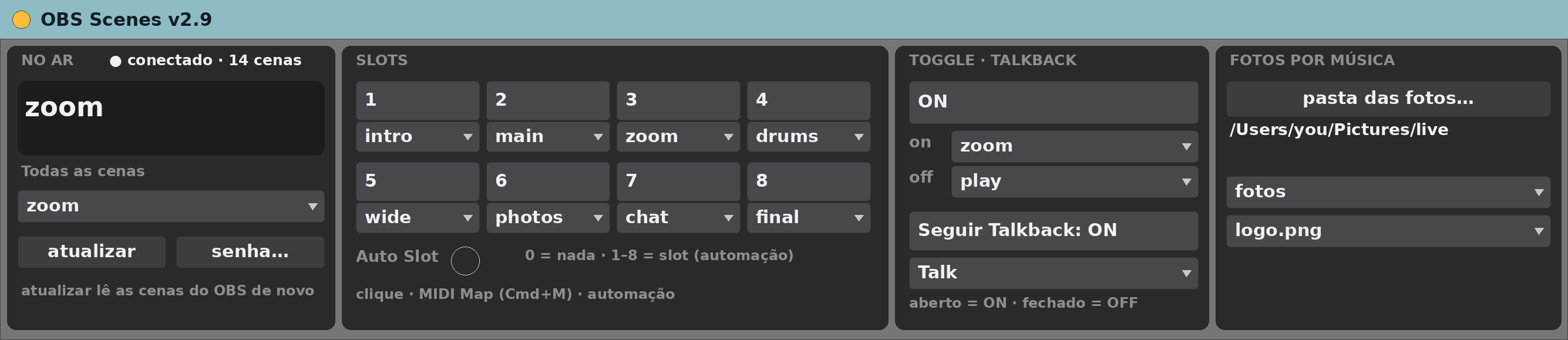
OBS Scenes v2.9
MIDI effect for Ableton Live 12 (Max for Live)
Switch OBS scenes from Ableton — by slot, by the talkback mic, or automatically between cameras.
Free, provided as is. Built for one working live rig and shared in case it is useful to you.
What it does
- Talks to OBS over the OBS WebSocket straight from Max. No Node, no plugins.
- 8 slots: an OBS scene each, fired from Live, from an automation parameter or from Live Remote.
- Follow Talkback: the mic opens, OBS goes to one scene; it closes, OBS goes to another.
- Auto cameras: while a song plays, rotate between chosen camera scenes on a timer.
- Photos per song: point a slideshow source at a folder named after the song.
- Second OBS: when the cameras run on one machine and the subtitle browser source on another, the subtitle reload goes to the right one.
- With the Talkback Mute Monitor in the set, it also reacts when the mic is silenced by someone else’s solo or by a muted group.
The device panel
- senha… — the OBS WebSocket password.
- atualizar — re-read the scene list.
- Eight slot menus, the talkback ON/OFF scenes, and the auto-camera settings.
Requirements
- Ableton Live 12 Suite (Max for Live included)
- Max 9.2 or newer
- macOS (built and tested on Apple Silicon)
- OBS 28 or newer with OBS WebSocket 5 enabled (Tools → WebSocket Server Settings)
- The OBS host, port and password
Install
- Unzip.
- Copy
OBS Scenes v2.9.amxdinto your Ableton User Library (for exampleUser Library/max dani/). - In Live’s browser, find it under User Library and drag it onto a track.
Setting it up
- Drop it on any MIDI track.
- Click senha… and type the OBS WebSocket password.
- Host and port live in
Live Remote Data/obs-scenes-config.json(127.0.0.1:4455 by default). - Pick a scene for each slot and the ON/OFF scenes for the talkback.
Known limits
- Interface in Portuguese.
- Without the Talkback Mute Monitor it reads the track’s mute only.
- Only tested on the author’s rig.
Version
- v2.9 — current release.
Support
No support promised, but bug reports are welcome. Say what you did, what you expected and what happened, with your Live and Max versions.