LET'S TALK
Software & Tools

Max for Live devices

Six projects I built for my own live rig — an iPad controller, headphone cue mixes, OBS scene switching, a talkback monitor and more. Free, and provided as is.

I play drums and stream live music. Everything here was written to solve a problem on my own stage, then cleaned up so other people can use it. They all run inside Ableton Live 12 Suite with Max for Live on macOS, and none of them needs Node, a plugin, an account or an internet connection. They are beta: they work on my rig, and they have not been through anyone else's.

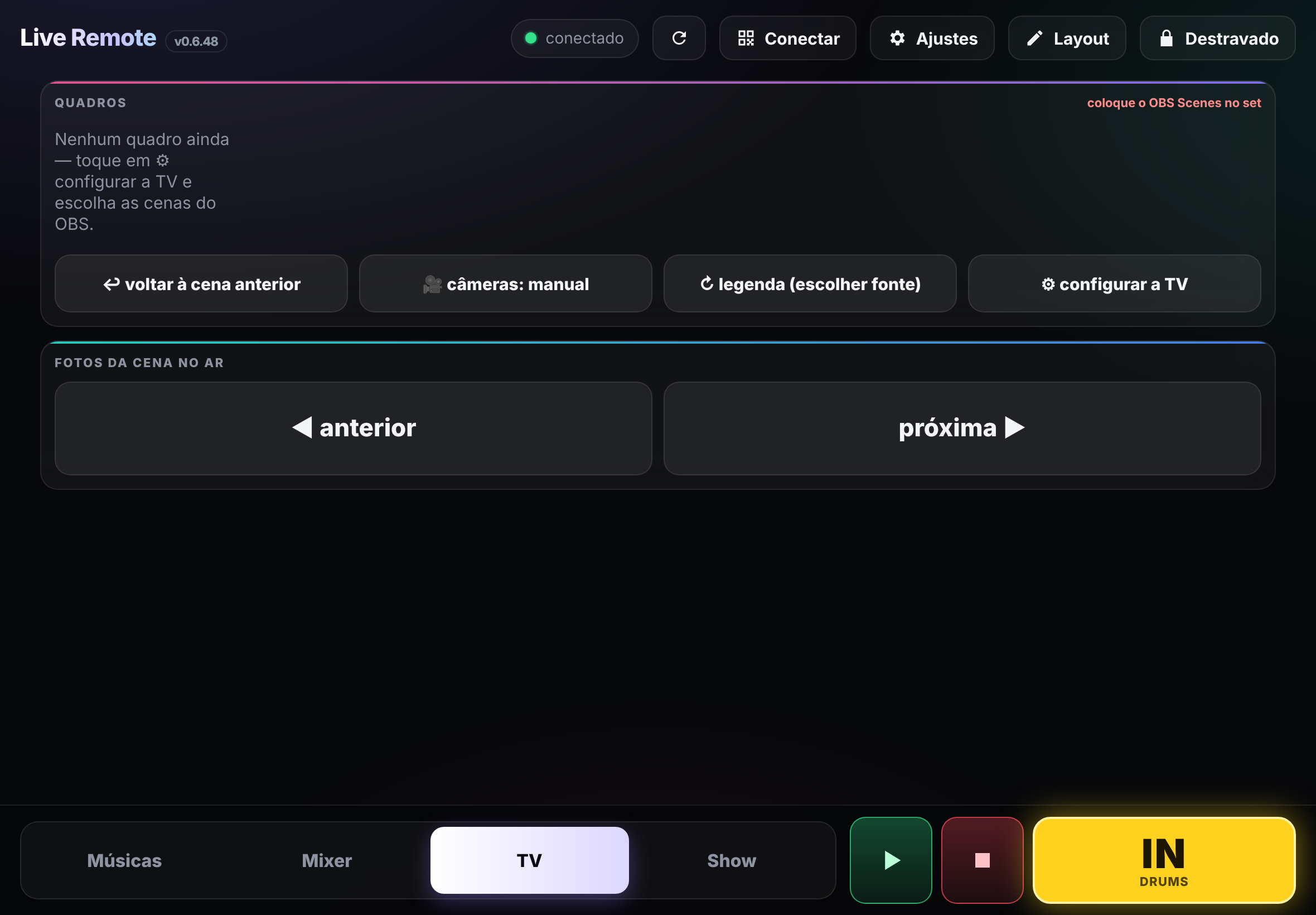
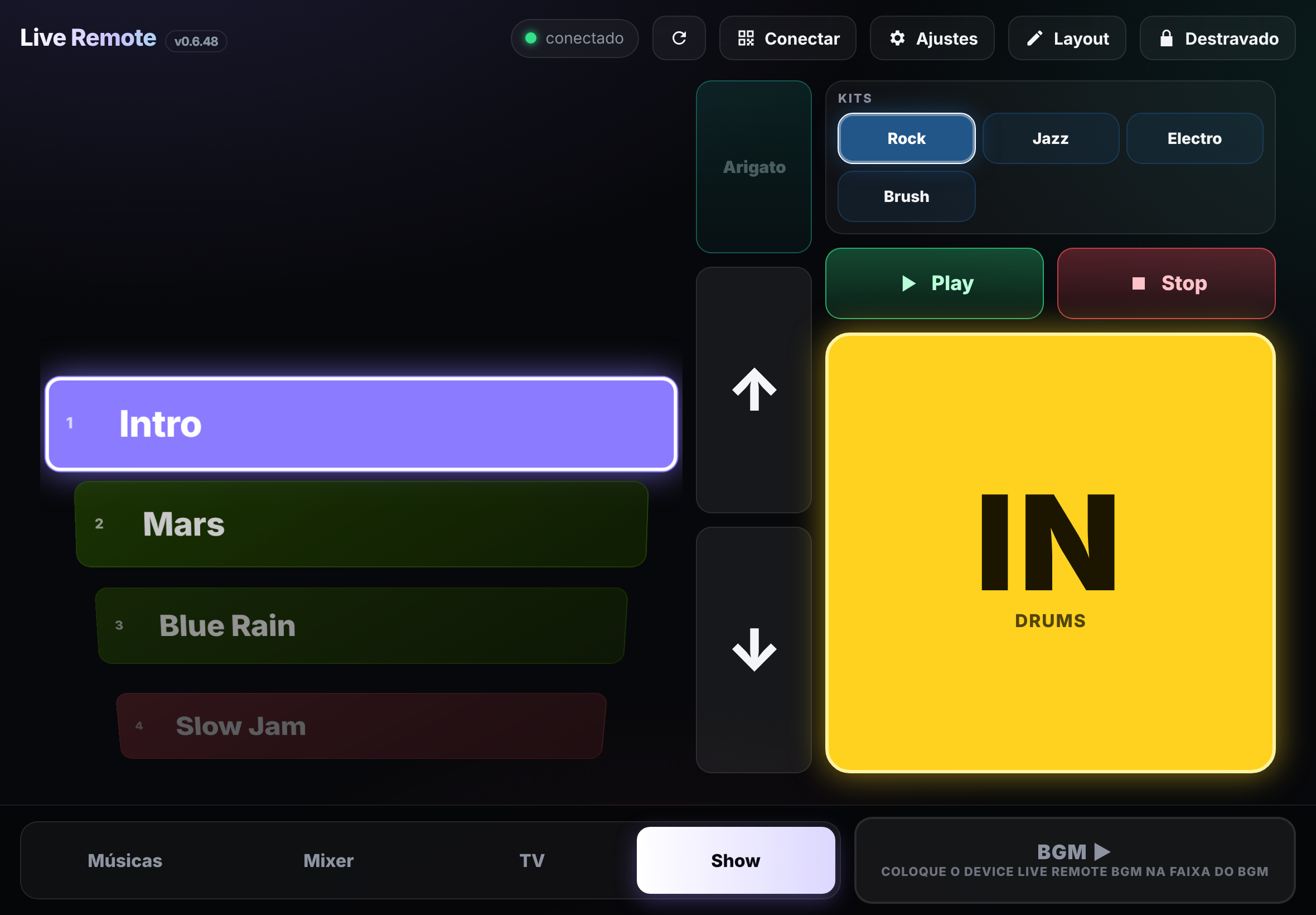
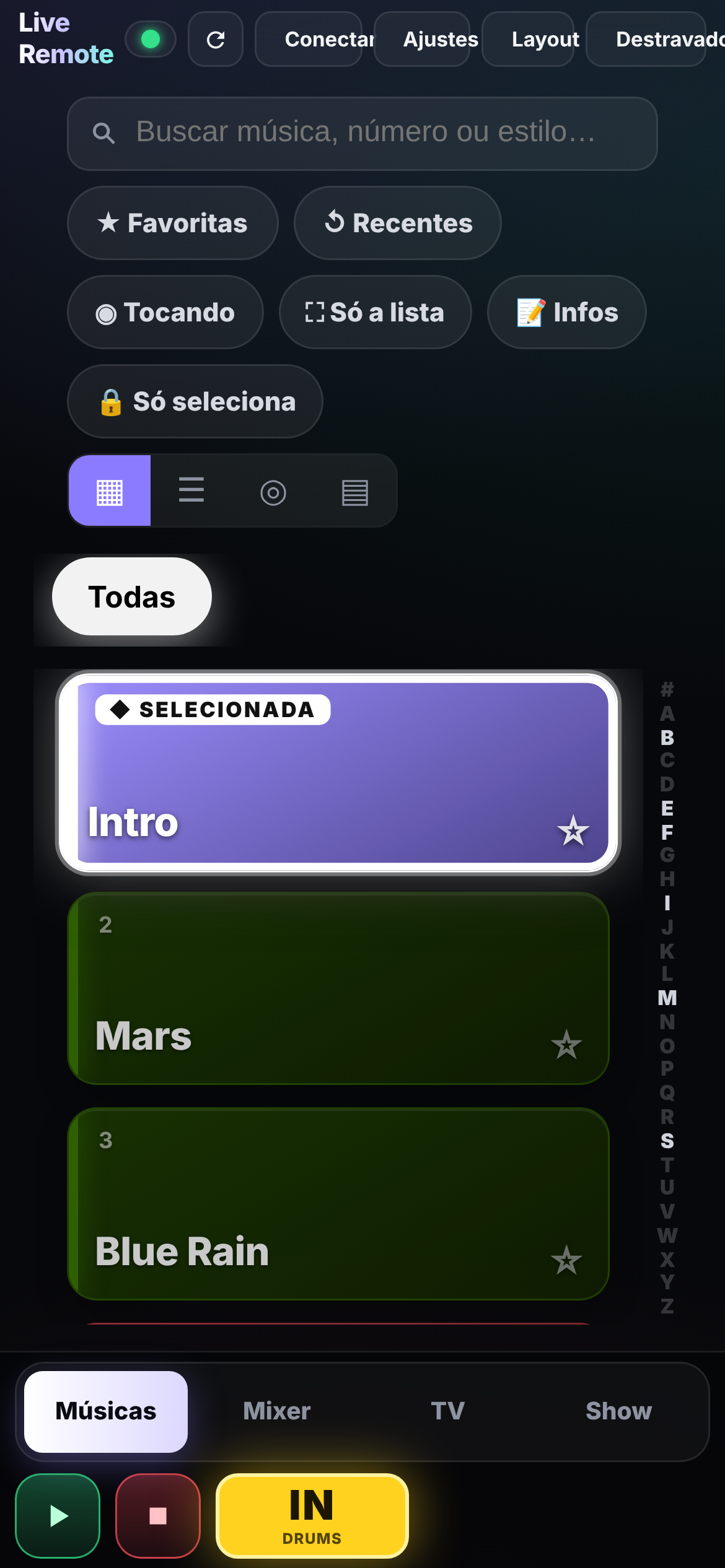
Live Remote
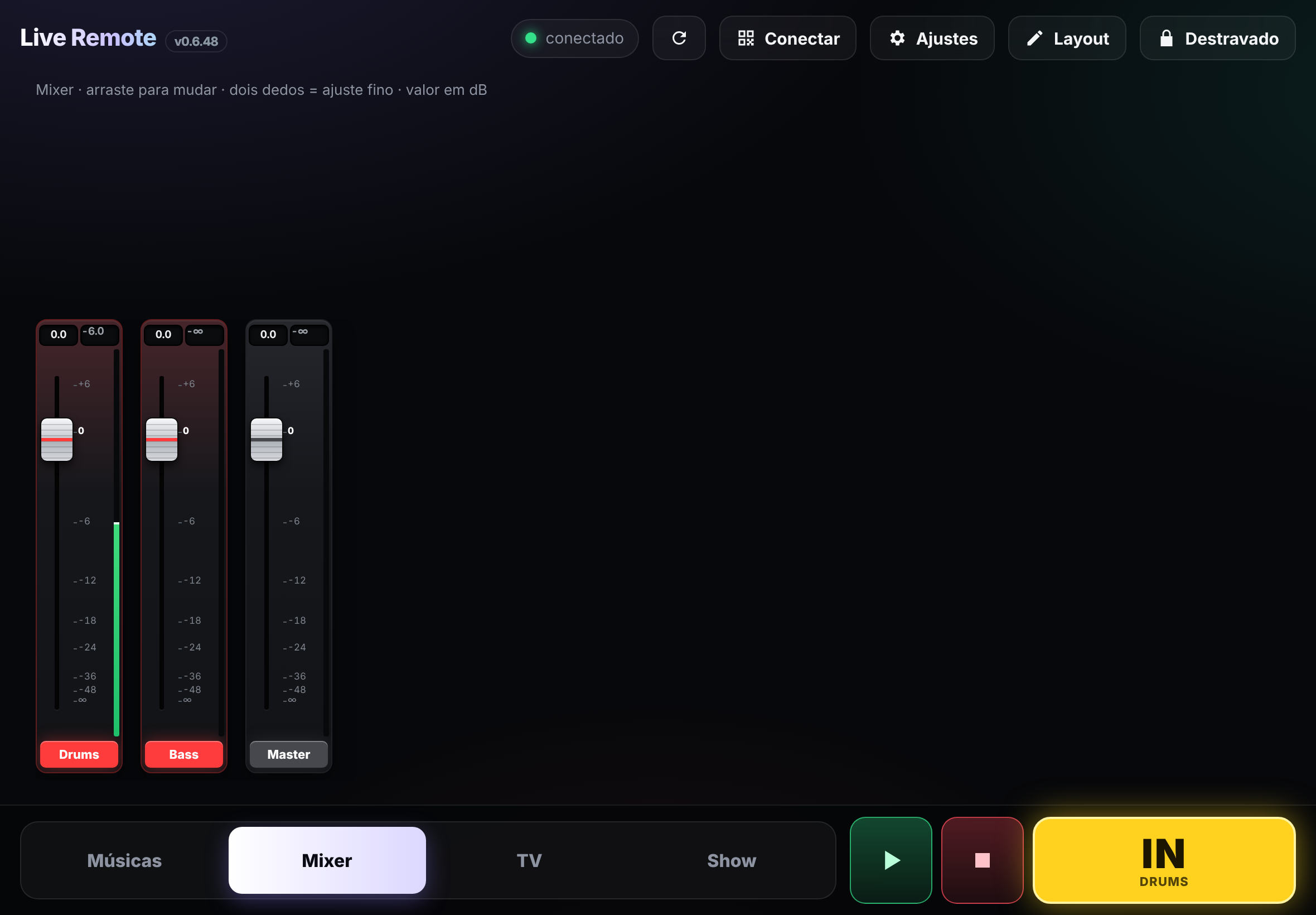
Browser screenshot · simulated Live set

Live Remote v0.6.48

BETA

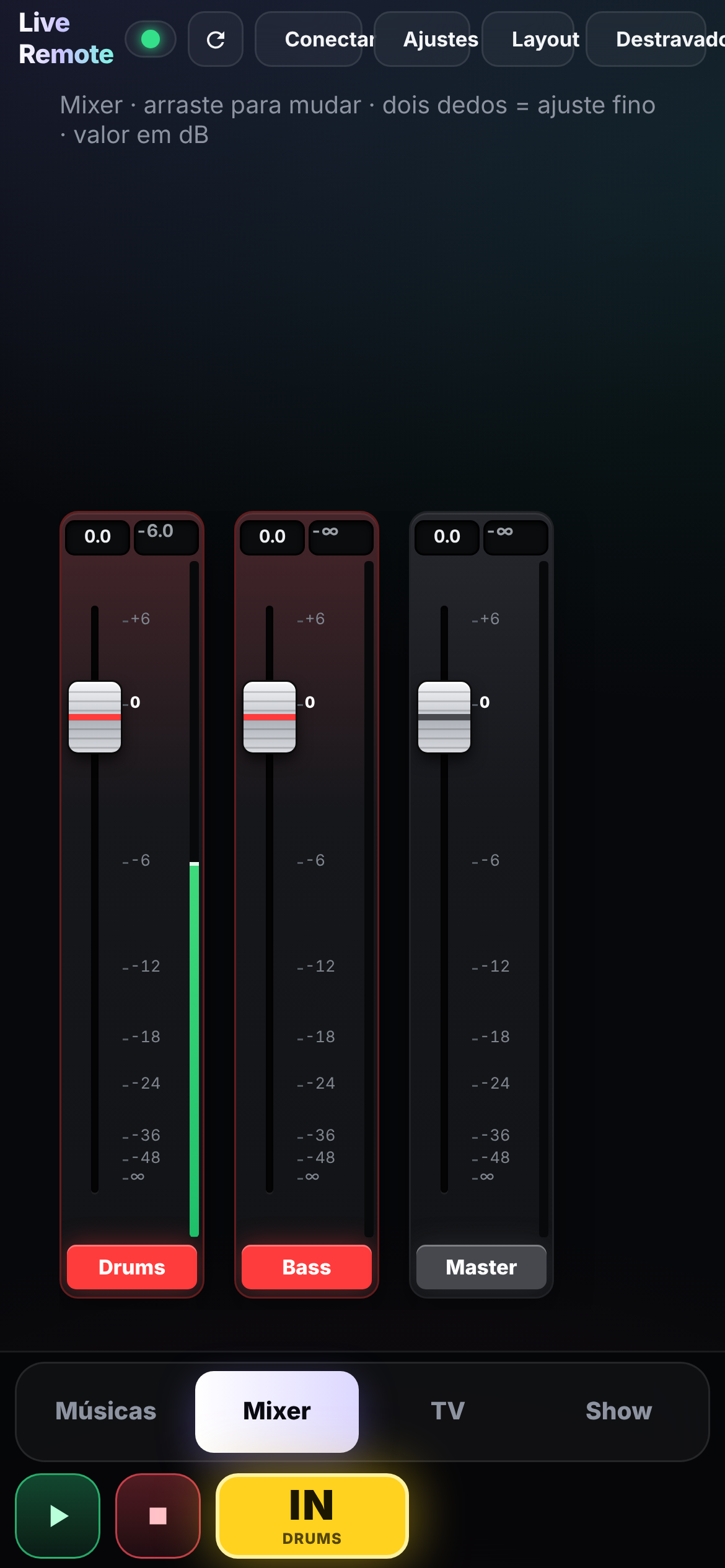
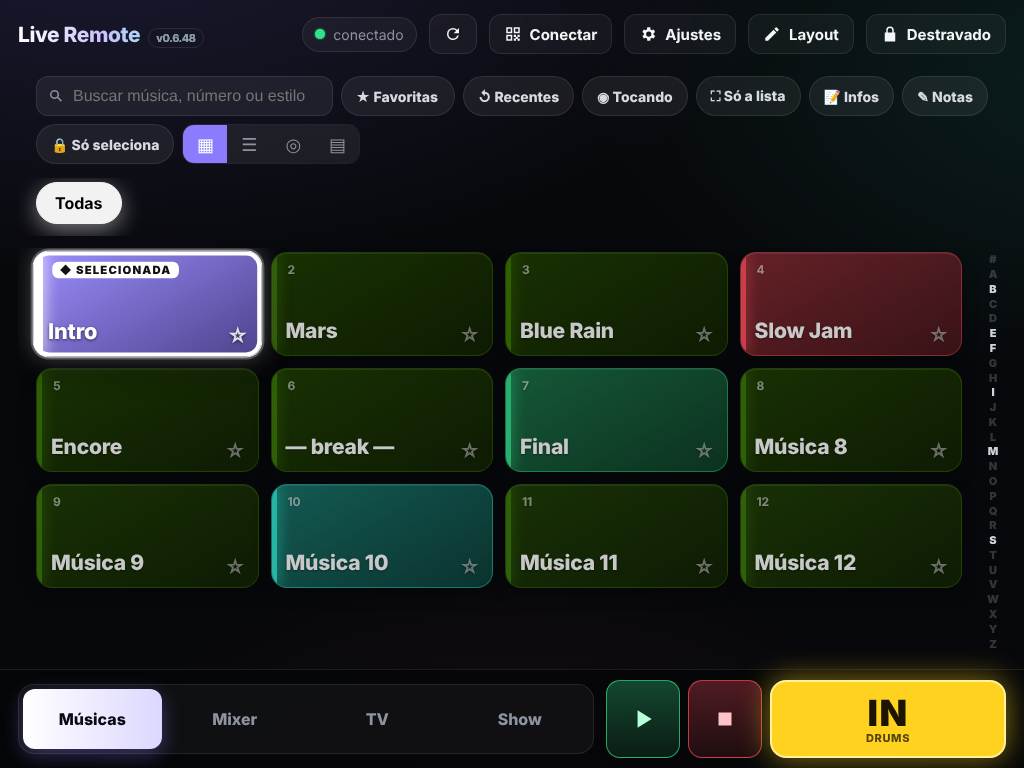
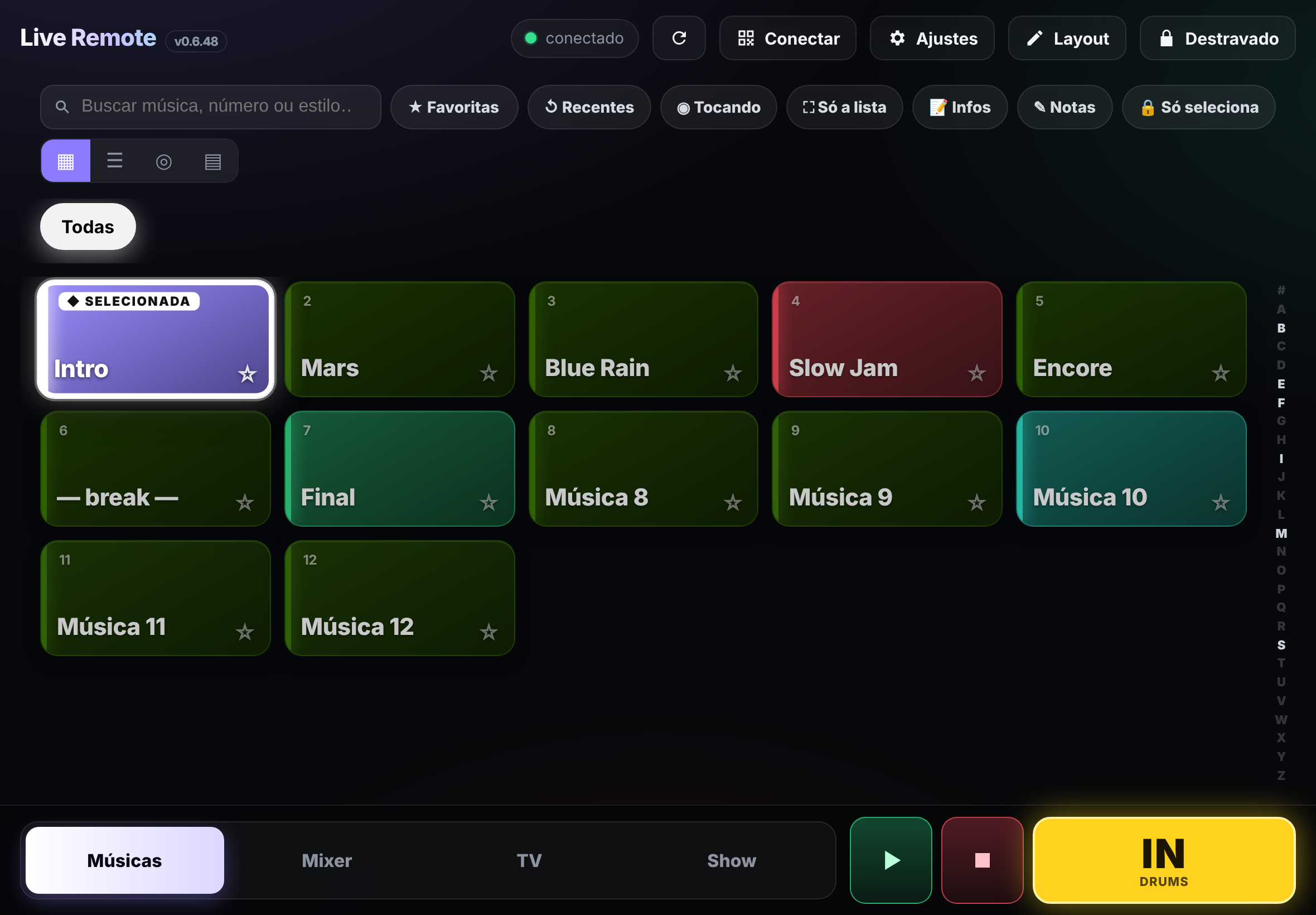
Turn any iPad, phone or laptop into a controller for your Live set.

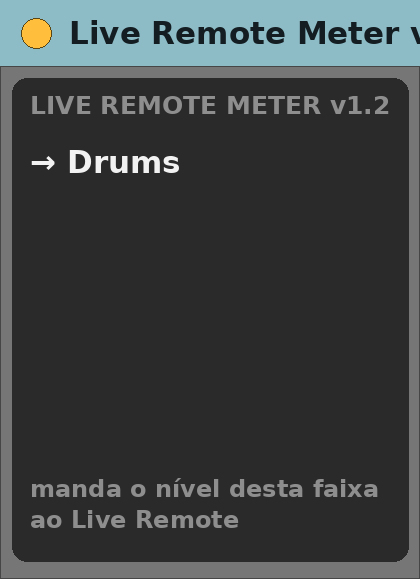
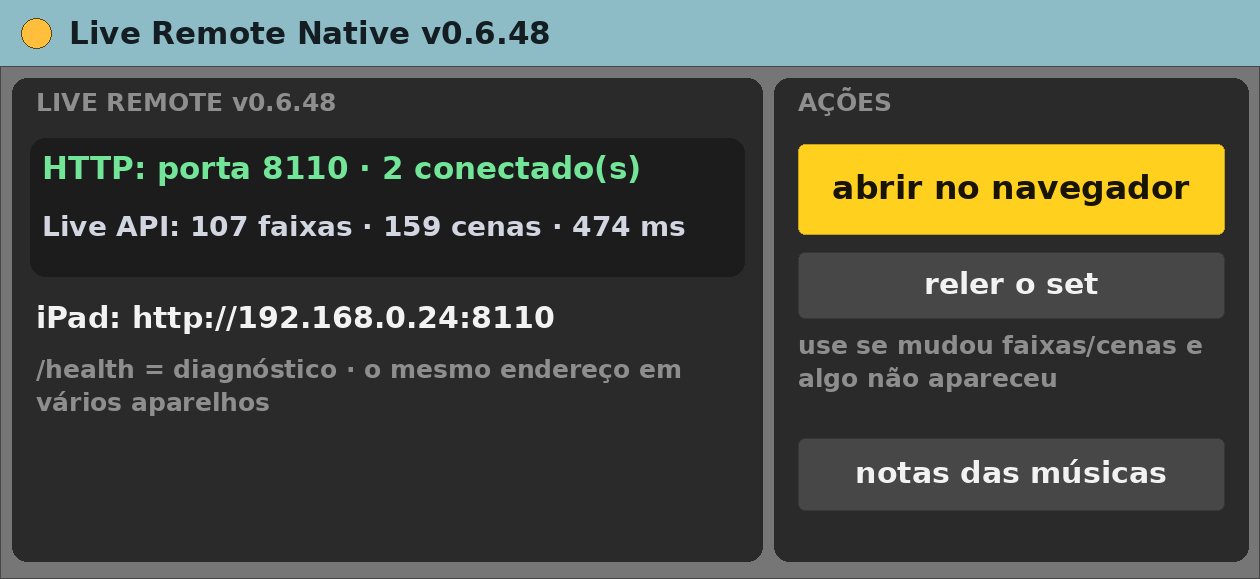
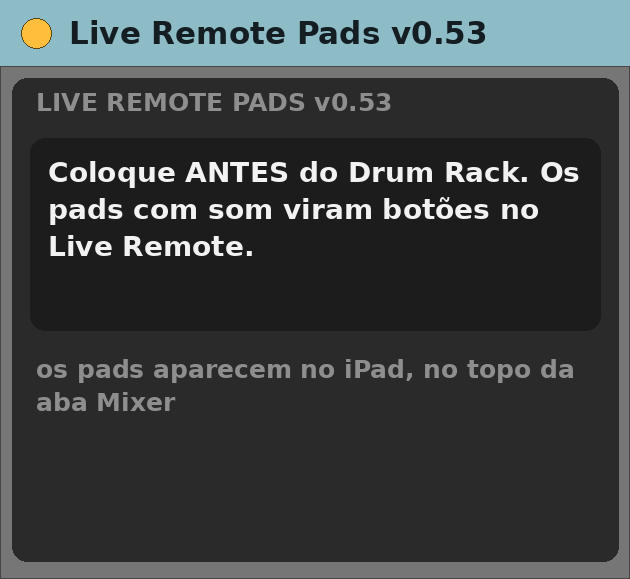
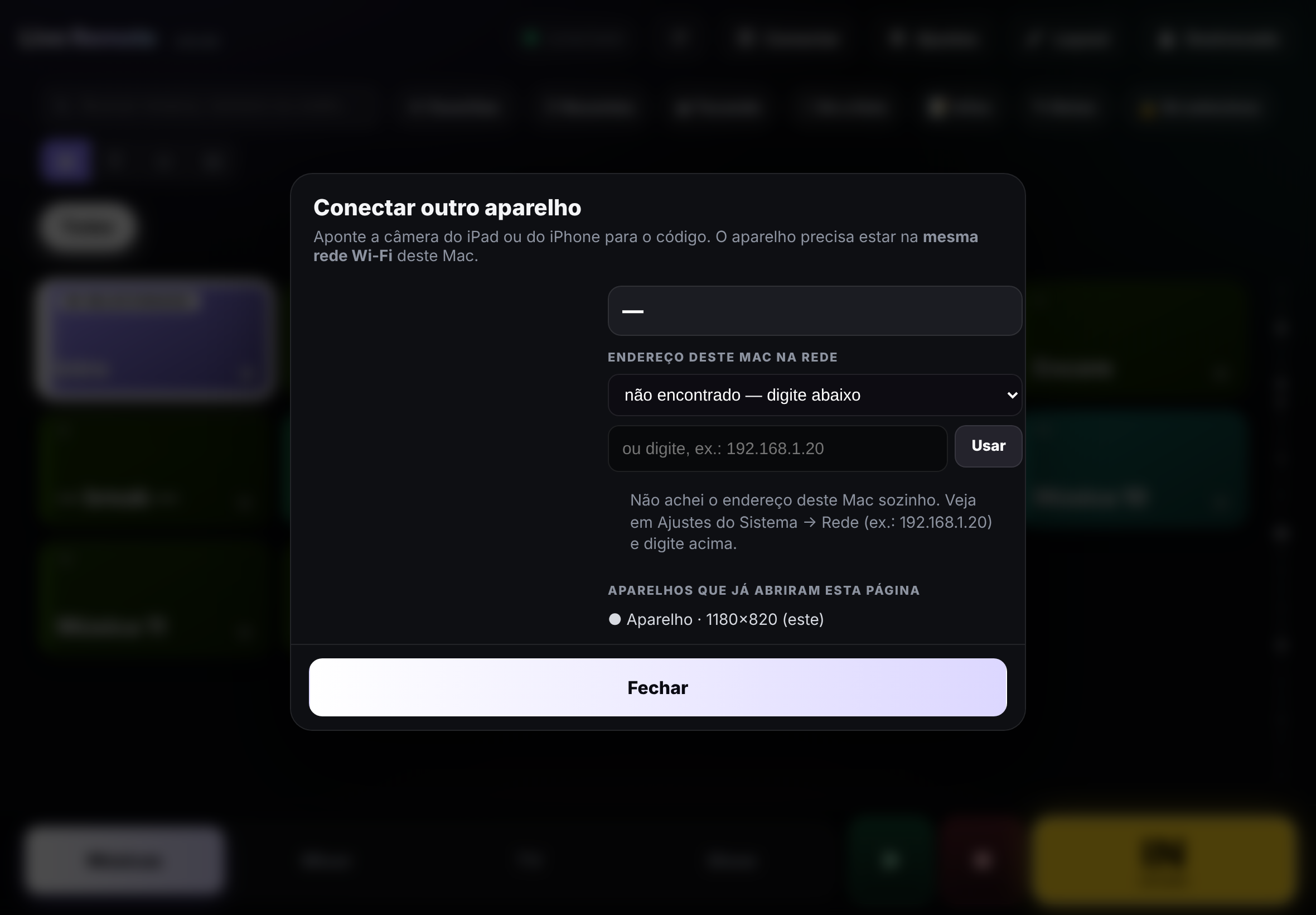
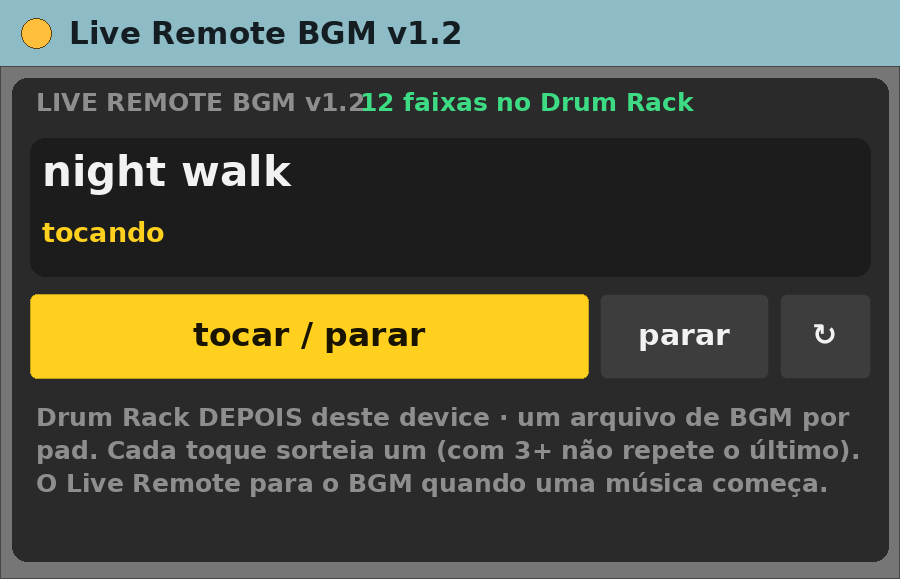
Max serves a web page; every device on your Wi-Fi opens the address and controls the set — your scenes as a searchable song list, a mixer with meters, OBS scene buttons and a layout editor so each device gets the screen it needs. A QR code connects a phone in one scan. Live Remote Native is the main device. Run it in the set to use the Meter, Pads and BGM companions with Live Remote. They do not work as standalone controllers. Meter also works with Live Cue. Pads and BGM require a Drum Rack.

You needAbleton Live 12 Suite + Max for Live (Max 9.2+) · macOS · phone or tablet on the same Wi-Fi as the Mac · port 8110 free

interface in Portuguese

Downloadlive-remote-v0.6.48.zip
More images (11)
Live Cue
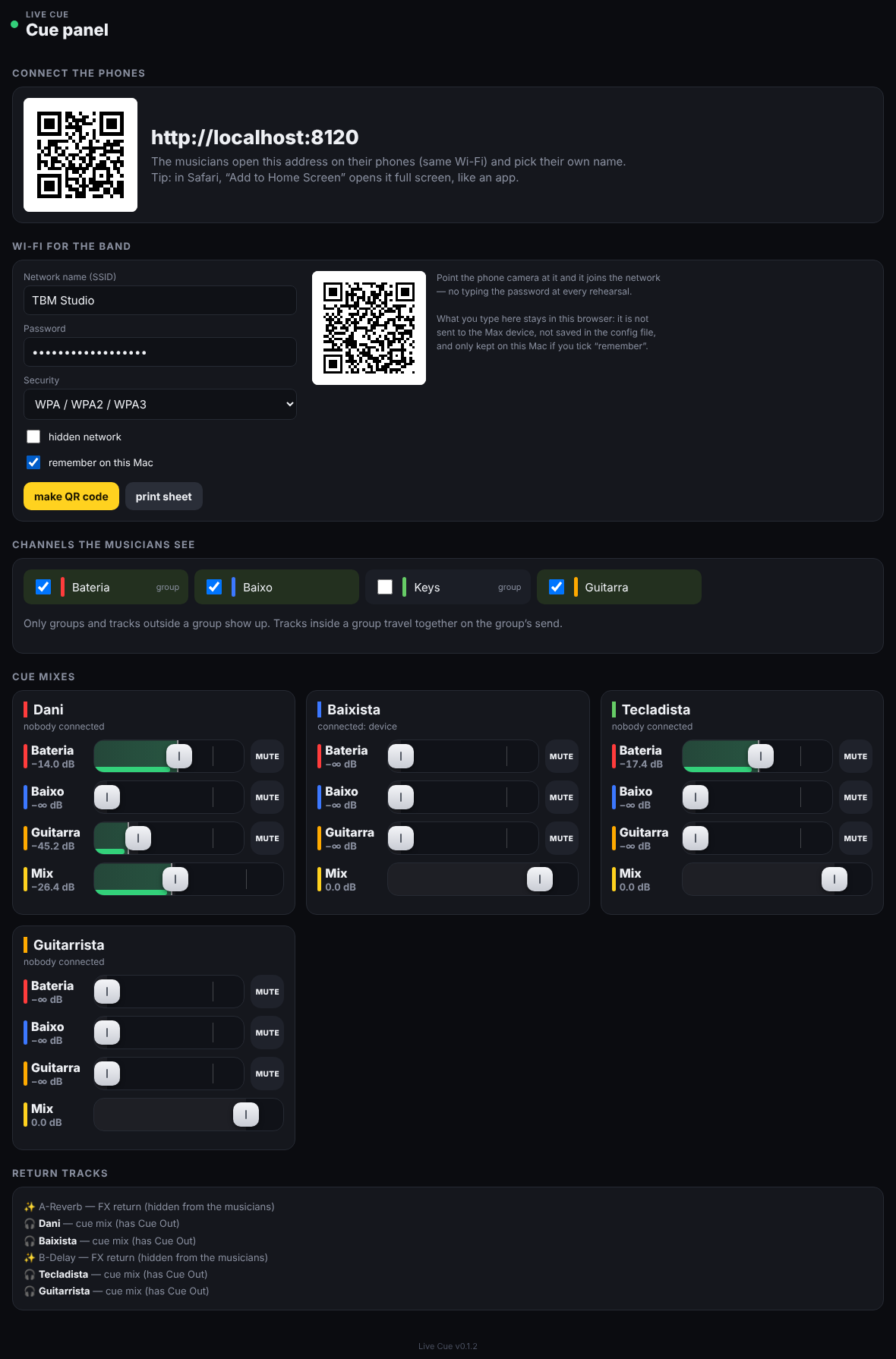
Browser screenshot · simulated Live set

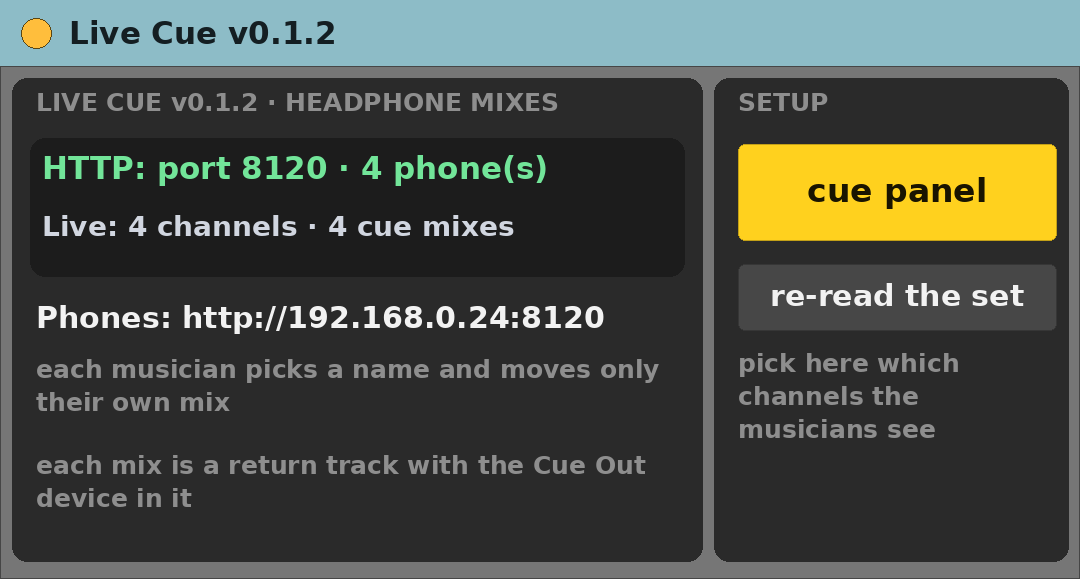
Live Cue v0.1.2

BETA

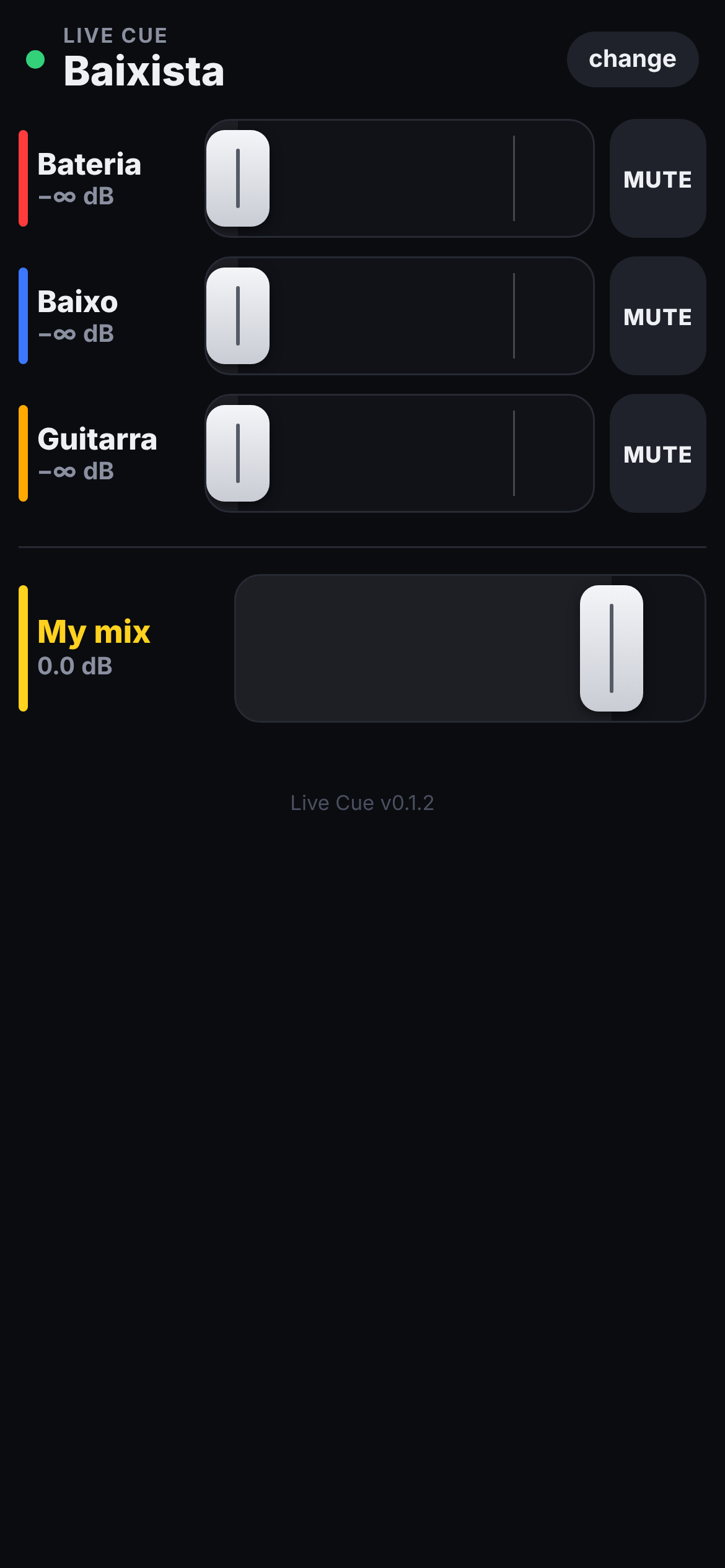
Cubase-style headphone cue mixes inside Ableton, controlled from each musician's phone.

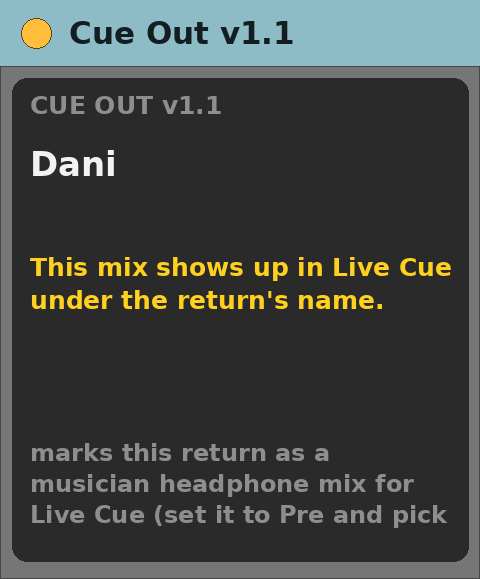
Mark a return track with the Cue Out device and it becomes one musician's headphone mix. They open a page, pick their own name, and get one fader per channel with the meter inside the fader, a mute that applies only to their mix, and their own headphone volume. You choose from the Mac which channels they are allowed to see, and a printable sheet carries the Wi-Fi QR code and the address.

You needAbleton Live 12 Suite + Max for Live (Max 9.2+) · macOS · phone or tablet on the same Wi-Fi as the Mac · ports 8120 and 8122 free · one Cue Out per headphone return

interface in English

Downloadlive-cue-v0.1.2.zip
More images (3)
OBS Scenes
Device interface · reconstructed from the .amxd

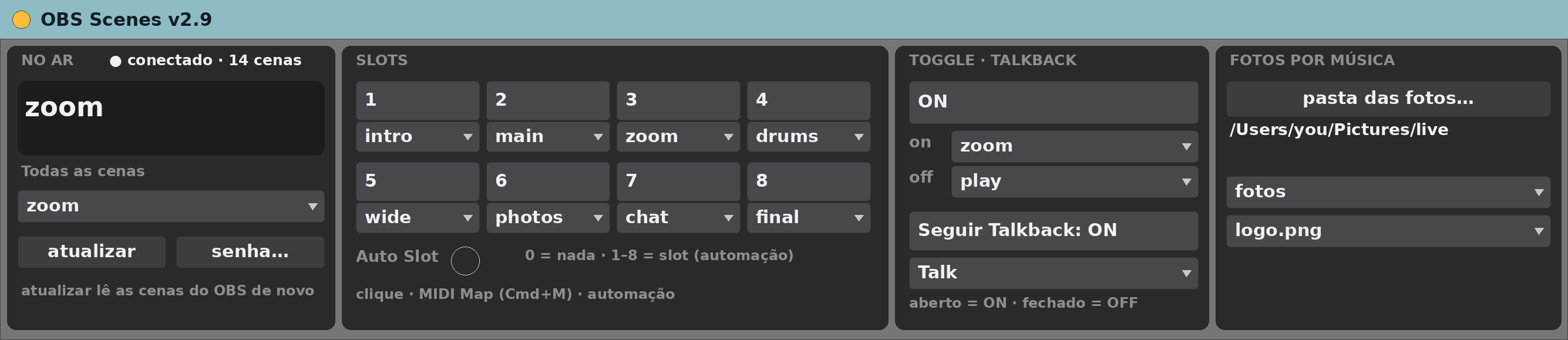
OBS Scenes v2.9

BETA

Switch OBS scenes from Ableton — by slot, by the talkback mic, or on a camera timer.

Talks to OBS over the OBS WebSocket straight from Max. Eight scene slots you can fire from Live, from an automation parameter or from Live Remote; a talkback follower that changes the shot when you open the mic; automatic camera rotation while a song plays; and a second OBS connection for rigs where the cameras and the subtitles live on different machines.

You needAbleton Live 12 Suite + Max for Live (Max 9.2+) · macOS · OBS 28+ with WebSocket 5 enabled · OBS host, port and password

interface in Portuguese

Downloadobs-scenes-v2.9.zip
Talkback Mute Monitor
Device interface · reconstructed from the .amxd

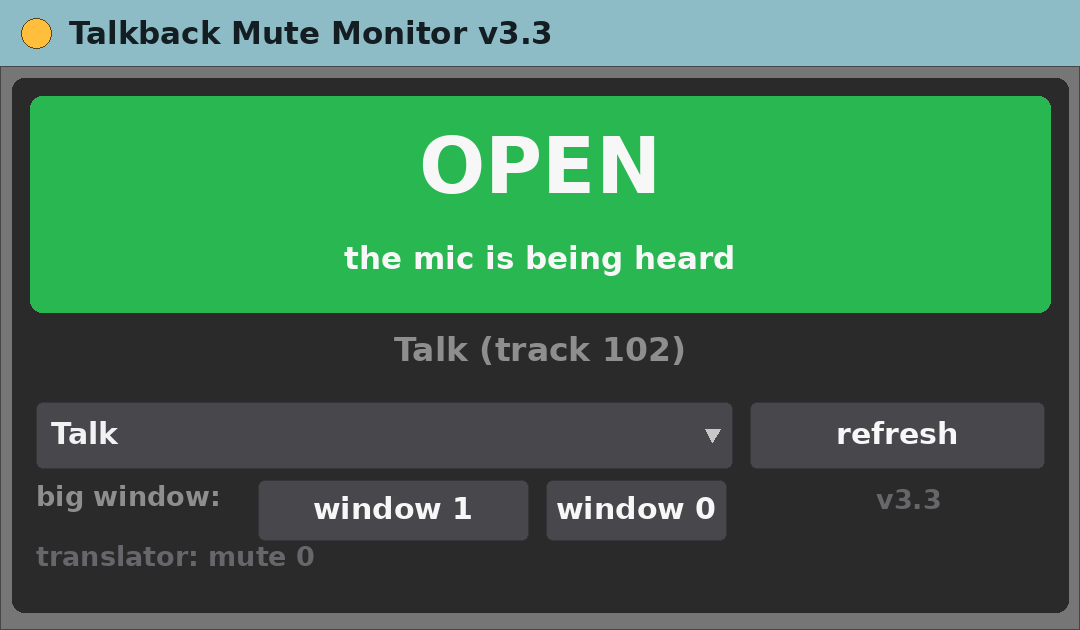
Talkback Mute Monitor v3.3

BETA

Know at a glance whether your talkback mic is actually being heard.

A big coloured block tells you OPEN, MUTED, MUTED BY SOLO or MUTED BY GROUP. The last two are the ones that catch people out: solo on another track, or a muted group, silences your mic while the track's own mute still says it is open. There is a floating window you can resize for across-the-room reading, and it can tell other software the state over UDP, so subtitle or streaming tools follow the mic.

You needAbleton Live 12 Suite + Max for Live (Max 9.2+) · macOS

interface in English

Downloadtalkback-monitor-v3.3.zip
Live Visuais
Device interface · reconstructed from the .amxd

Live Visuais v2.4

BETA

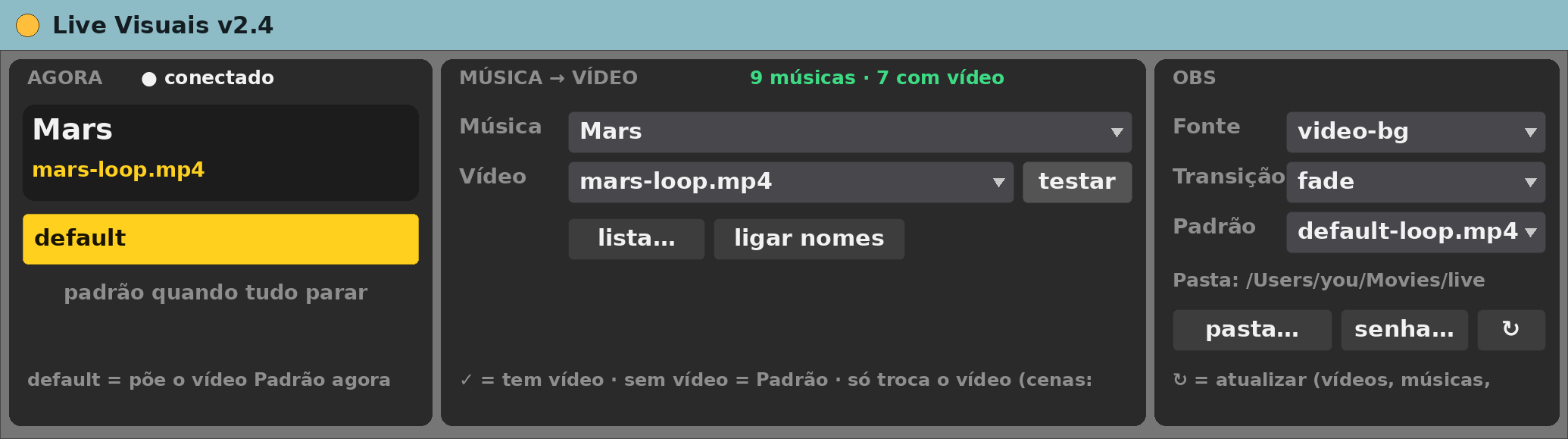
A different video loop in OBS for every song, switched by the scene you fire.

Point it at a folder of videos; each song whose name matches a file gets that clip, and anything without one falls back to a default. Cut or fade between them. It shows you which songs have a video and which do not, so you can see the gaps before the show.

You needAbleton Live 12 Suite + Max for Live (Max 9.2+) · macOS · OBS 28+ with WebSocket 5 enabled · video folder accessible to OBS · OBS media source

interface in Portuguese

Downloadlive-visuais-v2.4.zip
Live Loop
Device interface · reconstructed from the .amxd

Live Loop v0.6.2

BETA

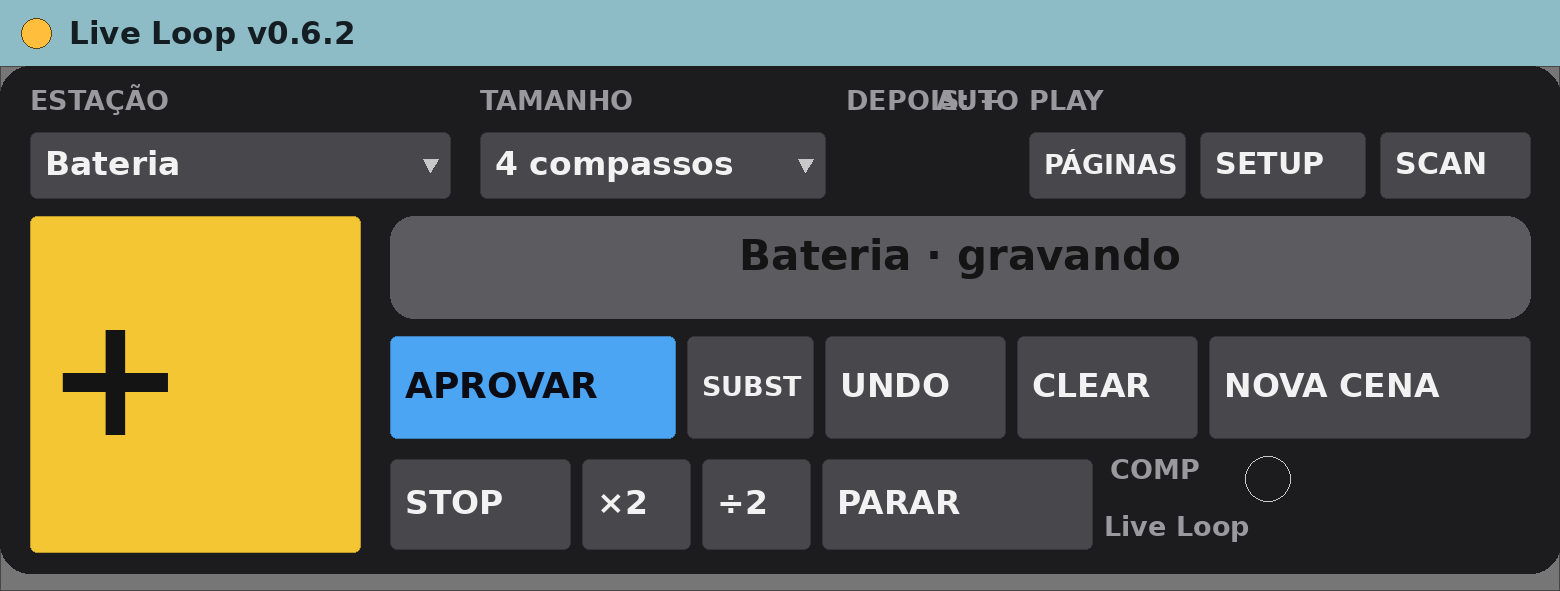
Live looping by station, recording straight into Session clips.

One station per instrument — drums, bass, keys, guitar, voice — each with its own track. Record, overdub, approve and replace without touching the computer; approved loops land as clips in a new Session scene. A web page gives every musician the buttons for their own station.

You needAbleton Live 12 Suite + Max for Live (Max 9.2+) · macOS · a MIDI pedal or a phone (optional)

interface in Portuguese · the least tested of the set

Downloadlive-loop-v0.6.2.zip

How to install

  1. Download and unzip.
  2. Copy the .amxd file(s) into your Ableton User Library — for example a folder of your own inside it.
  3. In Live's browser, open User Library, find the device and drag it onto a track.
  4. Read the manual in the zip: each device has one, and most need a minute of setup.